 StarPrinter
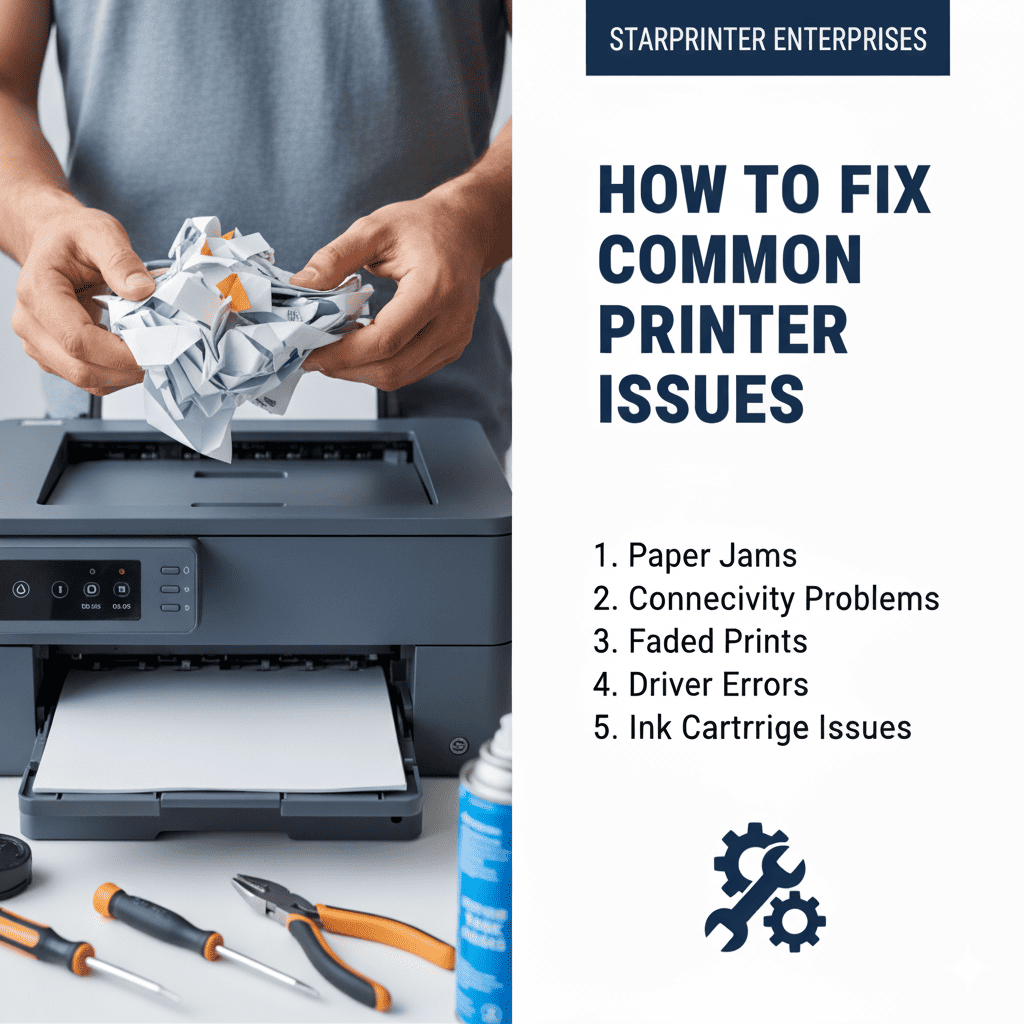
How to Fix Common Printer Issues — A Simple and Practical Guide
Printers are useful tools in both home and office environments, but occasional issues can interrupt productivity. The good news is that most printer problems have practical solutions that do not require complex repairs. Understanding the cause of the issue and following a step-by-step approach can help restore normal printing quickly and safely.
This guide covers commonly experienced printer issues and provides clear, easy-to-follow troubleshooting steps. These practices are based on standard device behavior and general printing concepts, making them suitable for different types of printers without requiring brand-specific instructions.
1. Printer Not Responding
When a printer does not respond, the issue often relates to connectivity or pending background tasks. Start by checking the power connection, USB cable, or wireless signal. Ensure the printer is turned on, connected to the same network as your device, and free from paused print jobs. Restarting both the printer and the computer can help reset temporary communication problems.
2. Slow Printing Performance
Slow printing can occur due to high-resolution settings, large files, or network congestion. Switching from high-quality to standard print mode can improve performance for everyday documents. Closing unused applications or reducing the size of the document may also help printing proceed more smoothly.
3. Paper Jams and Feeding Issues
Paper jams are among the most common printer challenges. Open the paper tray or rear access panel and remove any stuck sheets gently. Avoid pulling paper forcefully, as this can damage internal components. Make sure the tray is not overloaded, the paper is clean and flat, and the paper guides are properly aligned to prevent future jams.
4. Poor Print Quality
Faded, streaked, or uneven prints may result from low ink or toner levels, dirty nozzles, or printhead alignment issues. Running a cleaning cycle from the printer menu can help improve print quality. Using clean, good-quality paper and reviewing print settings can also make a noticeable difference.
5. Printer Not Connecting to Wi-Fi
Wireless connection problems often occur due to incorrect network settings or weak signal strength. Ensure the printer is within range of the router and connected to the correct Wi-Fi network. Restart the router and run the printer’s network setup again. If the connection remains unstable, switching temporarily to a wired connection may help identify whether the issue is wireless-related.
6. Error Messages on the Display
Many printers display basic error messages when they need attention. These messages may relate to paper supply, ink levels, alignment needs, or connectivity. Reviewing each on-screen indicator and following the suggested steps helps resolve most issues without advanced troubleshooting.
7. Driver or Software Issues
A printer may fail to operate properly if the driver is outdated or incompatible. Updating the printer driver through your computer’s settings can ensure that the device communicates correctly. Drivers help manage print functions, and keeping them current contributes to stable performance.
8. Misaligned or Crooked Prints
Misalignment usually results from shifted cartridges, incorrect page settings, or movement inside the paper tray. Running a printhead alignment from the printer’s maintenance menu can correct most alignment issues. Making sure paper is seated properly also helps maintain consistent output.
9. Pages Printing Blank
Blank pages may appear if ink or toner levels are low, nozzles are blocked, or the selected print settings do not match the document. A gentle cleaning cycle and checking the ink levels can often resolve this issue. Avoid long periods without printing, as this may cause dried ink to block the printhead.
10. When to Seek Additional Assistance
If the issue continues after basic troubleshooting, reviewing your device manual or checking official documentation may be helpful. Each printer model may behave differently, so manufacturer-issued guidance can offer additional clarity when needed.
With awareness, routine care, and simple troubleshooting steps, most common printer issues can be handled without unnecessary interruptions. These practices can help users maintain consistent performance and better understand the operation of their printing devices.