 StarPrinter
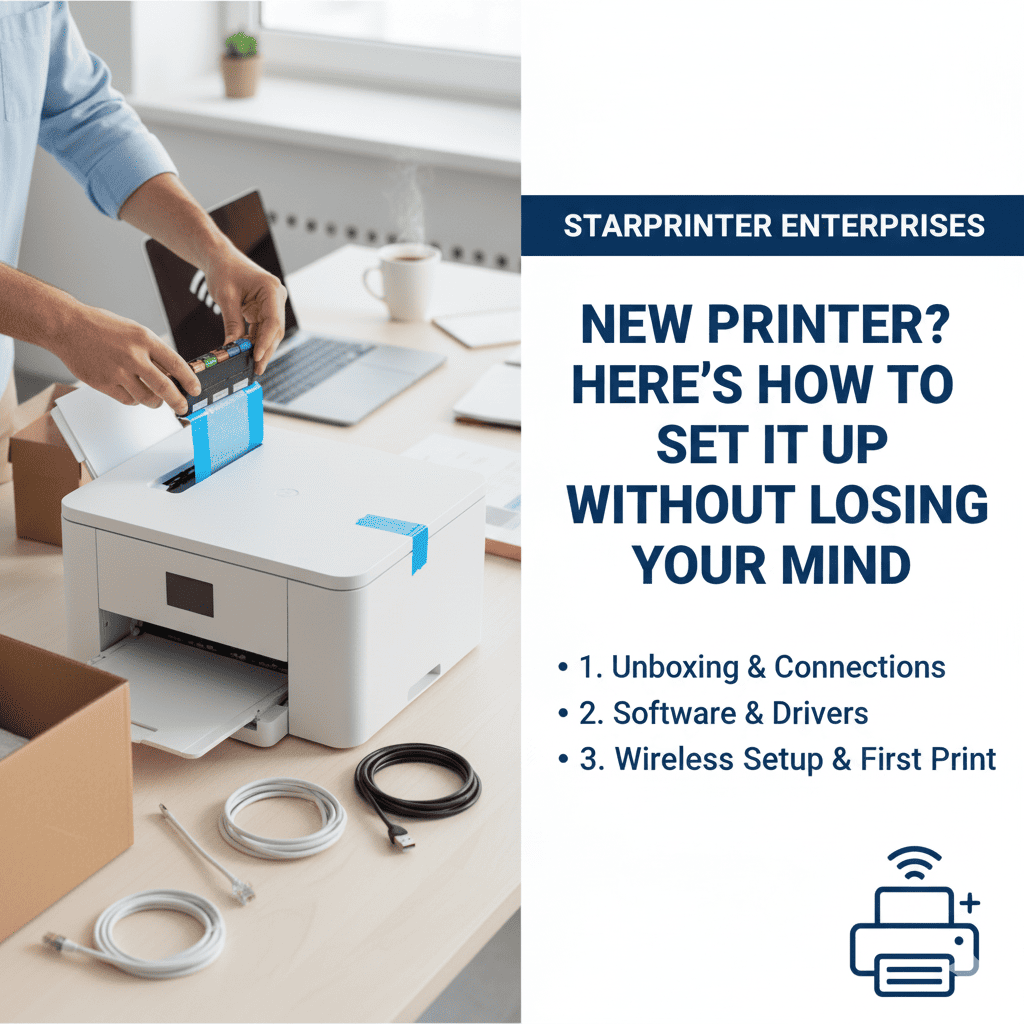
New Printer? Here’s How to Set It Up Without Losing Your Mind
Setting up a new printer can seem challenging, especially if you are doing it for the first time or if the instructions appear overwhelming. Fortunately, the setup process becomes much simpler when you break it down into a series of manageable steps. This guide explains the essential tasks involved in getting a new printer ready for everyday use — in a clear and practical way.
The steps below apply to most home and office printers and follow general setup principles. They are designed to help you understand how to prepare, connect, configure, and verify your device without relying on complicated technical processes.
1. Unbox the Printer Carefully
Begin by removing the printer from its packaging and placing it on a clean, stable surface. Remove all protective tapes, plastic sheets, and cardboard inserts from the exterior and interior of the device. Make sure you have all the components typically included with a new printer, such as the power cable, cartridges, and the initial setup guide.
2. Connect the Power and Begin the Setup
Plug the power cable into a suitable outlet and switch on the printer. Most new printers display an initial setup wizard. Follow the on-screen instructions to select your preferred language, region, and basic settings. Allow the printer to complete its startup process, which may involve internal calibration.
3. Install Ink or Toner Cartridges Correctly
Open the cartridge compartment and insert the ink or toner components in the designated slots. Each slot is usually marked clearly, making installation straightforward. After installation, the printer may run an automatic alignment or cleaning cycle to prepare the cartridges for printing.
4. Load Paper and Adjust the Paper Guides
Place plain paper into the input tray and adjust the paper guides so they fit snugly but not tightly. Proper alignment helps prevent paper feeding issues during printing. Confirm the selected paper size and quality settings in the printer menu to ensure smooth operation.
5. Connect the Printer to Wi-Fi or Your Computer
Many modern printers allow wireless connectivity. Use the printer’s control panel to select your Wi-Fi network and enter your password. If you prefer a wired connection, simply connect the USB cable to your computer. In either case, follow the on-screen prompts to complete the connection process.
6. Download the Latest Drivers and Utilities
To ensure smooth performance, download the appropriate drivers and setup utilities from your printer manufacturer’s official website. Drivers help your computer communicate effectively with the printer and allow access to additional features such as scanning, advanced printing options, and troubleshooting tools.
7. Perform a Test Print
Once the drivers are installed, print a test page to check alignment, clarity, and connection stability. Reviewing the output helps identify whether any adjustments are needed before you begin regular use.
8. Configure Optional Features
Many printers offer optional features such as duplex printing, energy-saving modes, mobile app connectivity, and cloud printing. Exploring these features can enhance convenience and streamline your everyday printing tasks.
9. Keep the Setup Guide Accessible
Although printer setup is typically straightforward, keeping the initial guide accessible can be helpful for future reference. The guide may contain diagrams or instructions for handling basic maintenance and troubleshooting tasks.
Final Thoughts
Setting up a new printer does not have to feel overwhelming. When approached step by step, the process becomes manageable and often quicker than expected. Understanding how to unpack, connect, and configure your printer can help ensure smoother printing experiences from the start.