 StarPrinter
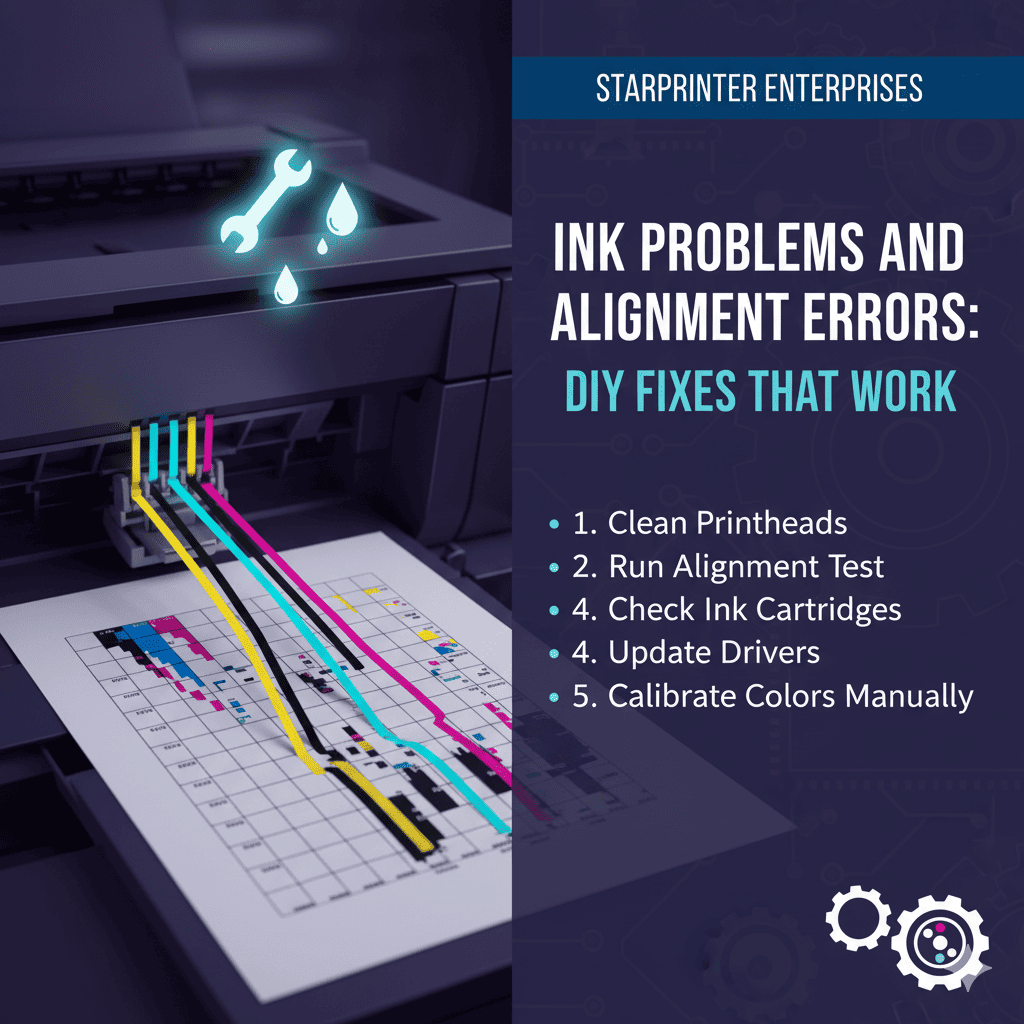
Ink Problems and Alignment Errors — DIY Fixes That Work
Ink issues and alignment errors are common printing problems that can affect everyday tasks at home and in the workplace. These problems often appear unexpectedly, but the good news is that many of them can be resolved with simple steps that do not require advanced technical knowledge. With a little patience and understanding of how your printer functions, you can restore clear, clean printing without frustration.
This guide explains the most frequently reported ink and alignment issues and provides easy, practical solutions that can help improve print quality. These troubleshooting steps are based on general printing principles and are suitable for use with most home and office printers.
1. Faded, Streaked, or Patchy Prints
When prints appear faded or streaked, the issue may be caused by low ink levels, dried nozzles, or incorrect print settings. Begin by checking whether the ink or toner levels are sufficient. If levels appear normal, you can run a cleaning or maintenance cycle from the printer’s settings menu to help clear any dried particles from the nozzles.
2. Colors Not Printing Correctly
If colors appear dull or inaccurate, check the print settings used for the document. Some settings prioritize speed over color accuracy. Using the “standard” or “best” print mode may improve the results. It can also help to review your paper selection, as certain paper types absorb ink differently and may affect color consistency.
3. Missing Lines in Text or Images
Missing lines usually occur when ink nozzles are blocked or partially clogged. Running a nozzle cleaning cycle often clears the blockage. If the problem continues, running a second cycle after a short pause can further improve print flow. Using the printer regularly helps keep the nozzles active and prevents drying.
4. Ink Smudging or Wet Pages
Smudging can happen when the paper surface absorbs ink slowly or when printing in high-coverage mode. Try using a different paper type or adjusting the print settings to “standard quality.” Allow the printed pages to dry before handling them, especially when printing large images or heavy color sections.
5. Printers Showing “Ink Cartridge Not Recognized”
This message may appear after installing a new cartridge or moving the printer. Ensure the cartridge is seated firmly in the correct slot and that no protective tabs or seals are left attached. Restarting the printer after reseating the cartridge often clears the message and restores normal function.
6. Alignment Errors Affecting Print Quality
Alignment issues occur when the printhead or cartridges are not positioned correctly. If text or images appear slanted, blurry, or uneven, open your printer’s maintenance settings and run a built-in alignment tool. This feature helps align the print elements and improves clarity.
7. Lines Appearing Crooked or Overlapping
Crooked lines can result from shifted paper guides or incorrect page size settings. Ensure that the paper is placed correctly in the tray and the guides are snug but not too tight. Selecting the correct paper size and orientation in your print menu also helps prevent alignment mismatches.
8. Printer Producing No Output at All
When a printer outputs blank pages, the ink levels, nozzles, or print settings may require attention. Checking ink levels, selecting the correct print mode, and running a cleaning cycle can often restore printing. Long breaks between prints may cause ink to dry, so occasional testing can help maintain flow.
9. When Ink Dries Out Due to Infrequent Use
Printers that are not used regularly may experience dried ink inside the nozzles. Using the printer periodically — even for a simple test page — helps maintain smooth ink circulation. Keeping the printer in a moderate environment with stable temperature can also reduce the chances of drying.
10. When to Use the Printer’s Reset or Maintenance Tools
If repeated cleaning cycles and alignment tools do not fully resolve the issue, using the built-in reset or maintenance options may restore normal operation. These tools help refresh internal settings and can solve persistent ink and alignment-related problems.
Final Thoughts
Most ink problems and alignment errors can be fixed through simple, targeted steps. Regular maintenance, careful handling, and correct print settings contribute to better quality and more consistent results. Understanding how to spot and address these issues early helps keep your printer running smoothly and prevents interruptions in your daily printing tasks.