 StarPrinter
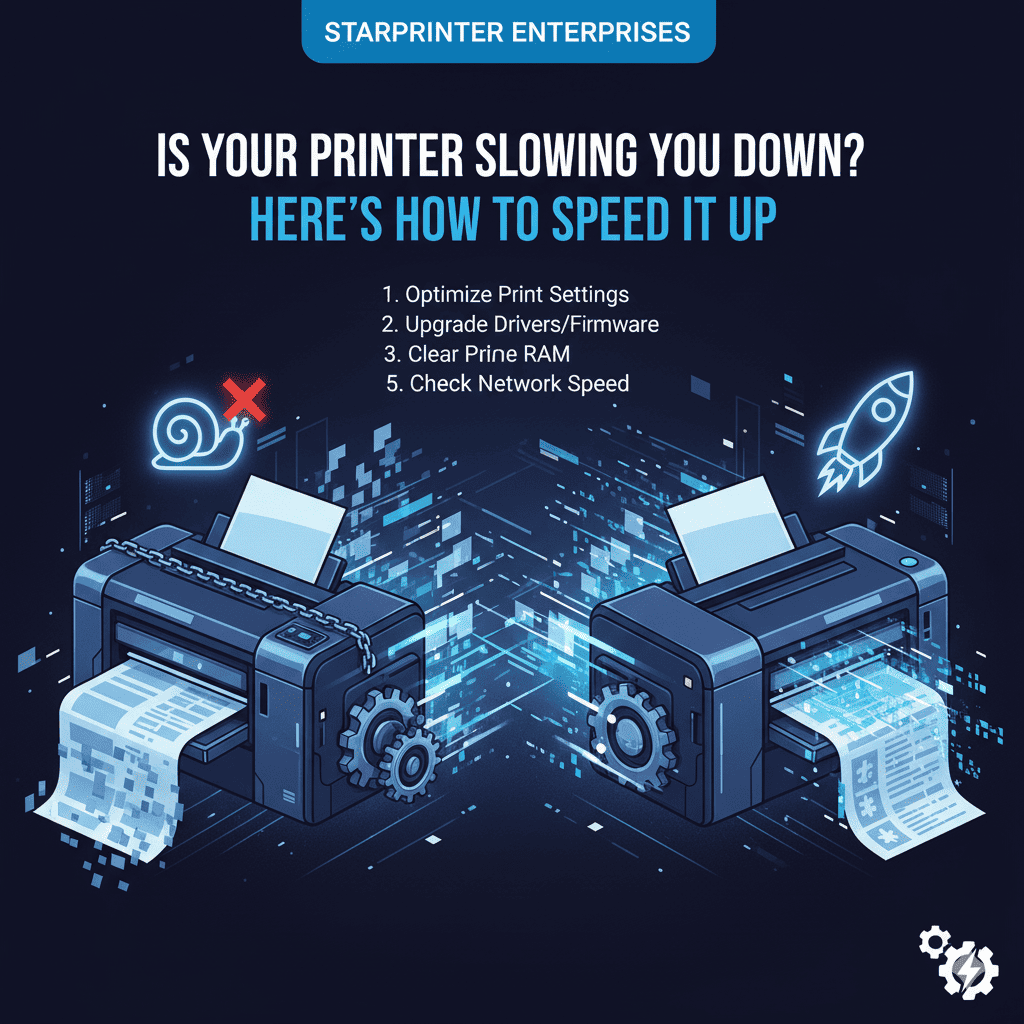
Is Your Printer Slowing You Down? Here’s How to Speed It Up
Slow printing can disrupt productivity, especially when you are trying to complete important tasks on time. Whether you are printing work documents, study materials, or everyday files, delays can be frustrating. Fortunately, many common causes of slow printing are easy to fix and do not require advanced technical knowledge.
This guide explains practical steps that help improve print speed, optimize your printer’s performance, and ensure a smoother printing experience. These tips follow general printing principles and apply to many home and office printers.
1. Check Your Print Quality Settings
High-quality print modes use more ink and take longer to process. If you are printing everyday documents, switching to “standard” or “draft” quality can significantly speed up the printing process. These settings use less ink and require fewer processing steps, making them suitable for routine printing tasks.
2. Reduce Image and File Size
Large image files or detailed graphics can slow down printing because the printer needs additional time to process the information. Reducing the resolution of images or compressing large documents can help improve print speed while maintaining readable quality.
3. Check Your Printer’s Connection Type
Wireless printing is convenient, but it may be slower than using a wired USB connection, especially if the Wi-Fi signal is weak or experiencing interference. If you need faster printing temporarily, try switching to a wired connection to see if performance improves.
4. Keep Your Printer’s Firmware Updated
Printer performance can decline when internal software is outdated. Updating your printer’s firmware through its settings menu can improve processing speed, enhance stability, and resolve issues that may be slowing down print tasks.
5. Clear Unnecessary Print Queue Tasks
Multiple pending print jobs can delay new tasks. If your print queue contains paused or stuck jobs, clearing them can help restore normal printing speed. Restarting both the printer and the computer after clearing the queue often improves performance.
6. Use Suitable Paper for Faster Output
Some paper types are heavier or coated, which may slow printing due to longer drying times. Using standard, smooth paper for everyday documents allows the printer to process and release pages more quickly.
7. Adjust Duplex (Two-Sided) Printing Settings
Duplex printing is useful for saving paper, but it naturally takes longer because the printer must print one side, wait, flip the page, and then print the other. If you need the fastest possible output, switching to single-sided printing can save time.
8. Restart Your Printer to Refresh Performance
Over time, printers may store temporary data that slows performance. Restarting the printer clears these temporary files and can restore faster processing. A simple restart is often effective in improving speed.
9. Reduce the Number of Devices Sharing the Printer
When multiple devices send print jobs at the same time, the queue becomes longer and slower. If possible, schedule printing during less busy times or pause tasks from other devices to maintain smoother performance.
10. Keep Your Printer Clean and Well-Maintained
Dust buildup and residue around rollers or internal components can slow the physical printing process. Light cleaning and routine maintenance performed through the printer’s built-in tools help ensure that pages move smoothly through the device, improving overall speed.
Final Thoughts
Slow printing does not necessarily mean a major problem. By adjusting print settings, managing file sizes, and keeping your printer updated and well-maintained, you can significantly improve performance. These practical steps help keep your printing tasks efficient and ensure you remain productive throughout the day.