 StarPrinter
What That Printer Error Code Really Means (And How to Clear It)
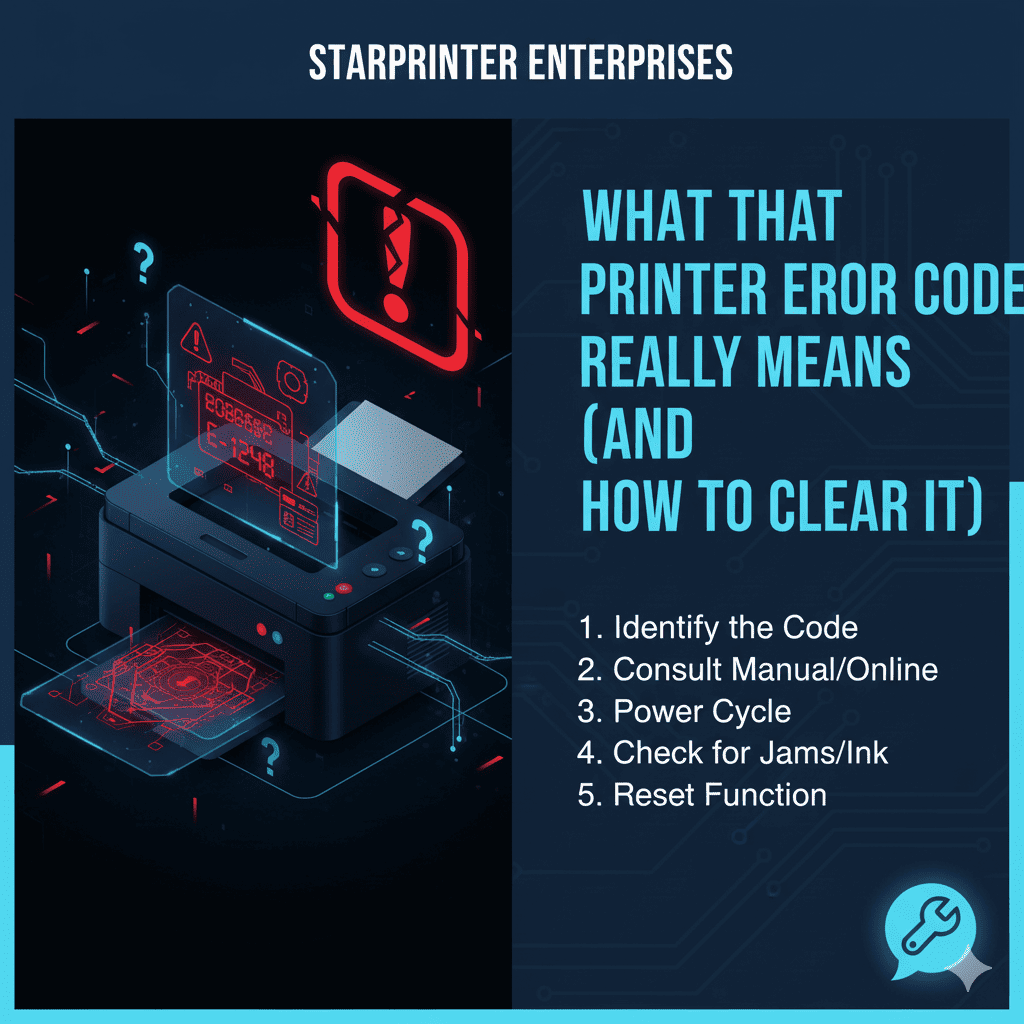
Printer error codes can be confusing, especially when they appear suddenly and interrupt your work. These codes may look technical, but most of them relate to common issues such as paper misfeeds, low ink, connectivity interruptions, or temporary software glitches. Understanding what these error codes mean can help you resolve issues quickly and avoid unnecessary delays.
This guide explains frequently seen printer error messages, why they appear, and the practical steps you can take to clear them. These suggestions are based on general device behavior and apply to a wide range of home and office printers.
1. Paper Jam or Paper Feed Error
This is one of the most common printer error notifications. It usually indicates that a sheet of paper has not fed correctly or has become stuck inside the device. To clear this error, open the paper tray or rear access panel and remove any jammed paper gently. Ensure the paper is aligned properly before printing again to help prevent future jams.
2. “Low Ink” or “Ink System Error”
Ink-related messages often appear when the printer detects low levels or when a cartridge is not seated properly. Checking ink or toner levels and reinstalling the cartridges normally resolves the issue. Running a quick cleaning cycle through the maintenance menu may also help improve print quality after clearing the error.
3. “Cannot Connect to Network”
Connectivity errors usually mean the printer is not communicating with your Wi-Fi or device. Restarting your router, ensuring the printer is within range, and reconnecting the printer using the network setup menu often resolves the problem. Verifying that your device and printer are on the same network can also help.
4. “Printhead Alignment Required”
This error appears when the printer detects alignment issues with the printhead. Running the alignment tool through your printer’s maintenance menu usually resolves this message. Keeping paper aligned in the tray can help reduce the occurrence of future alignment alerts.
5. “Cartridge Not Recognized”
This message can appear after installing a new cartridge or if the cartridge is not securely fitted. Reseating the cartridge firmly and restarting your printer may clear the error. Checking for any remaining protective seals or packaging also helps ensure proper detection.
6. “Printer Offline”
An offline error usually indicates a communication delay between the computer and printer. Restarting both devices and ensuring the printer is selected as the default device typically resolves the issue. Checking for paused or stuck print jobs may also restore the connection.
7. “Out of Paper” (Even When the Tray Is Full)
Sometimes printers display this message even when paper is loaded. This can occur if the paper guides are too loose or too tight, causing the sensors to misread the tray. Adjusting the guides and ensuring the paper is smooth, clean, and properly stacked usually resolves the issue.
8. “Scanning Error” or “Scanner Unavailable”
These messages appear when the scanning function is temporarily blocked or unable to initialize. Checking the scanner lid, restarting the device, and verifying the connection method typically clears the message. If using a wireless connection, ensuring proper signal strength can improve scanner stability.
9. “Driver Not Installed” or “Driver Update Required”
This error occurs when the software required for communication between the printer and your computer is missing or outdated. Updating or reinstalling the printer driver through your device’s settings generally resolves the problem and restores full functionality.
10. “General Error” or “Unknown Error”
General or unknown error messages normally indicate a temporary internal fault. Restarting the printer allows it to reset internal components. If the message appears again, checking cables, reviewing settings, and clearing print queues may help resolve the issue.
Final Thoughts
Printer error codes can look technical, but many are linked to simple issues such as paper alignment, ink levels, or temporary connection interruptions. By reviewing common error messages and taking basic troubleshooting steps, you can resolve most issues quickly and continue your printing tasks without unnecessary delays.